Thingsrecon doesn't have a built-in scan scheduler yet.
However, you can work around this limitation by using its REST API to launch scans with an external task scheduler.
This guide will show you how to create a simple script that, when paired with a service like cron on Linux or Task Scheduler on Windows, will allow you to run scans on your own timetable.
Step 1: Retrieve API Information
- Use this article to understand how to retrieve the needed API Key and ClientID
Step 2: Launch a Scan via the API
The POST /public/api/projects/{projectId}/launch-scan endpoint is the one we're interested in.
It's specifically designed to start a scan on a given project.
From Swagger UI you can test using the POST /public/api/projects/{projectId}/launch-scan endpoint :
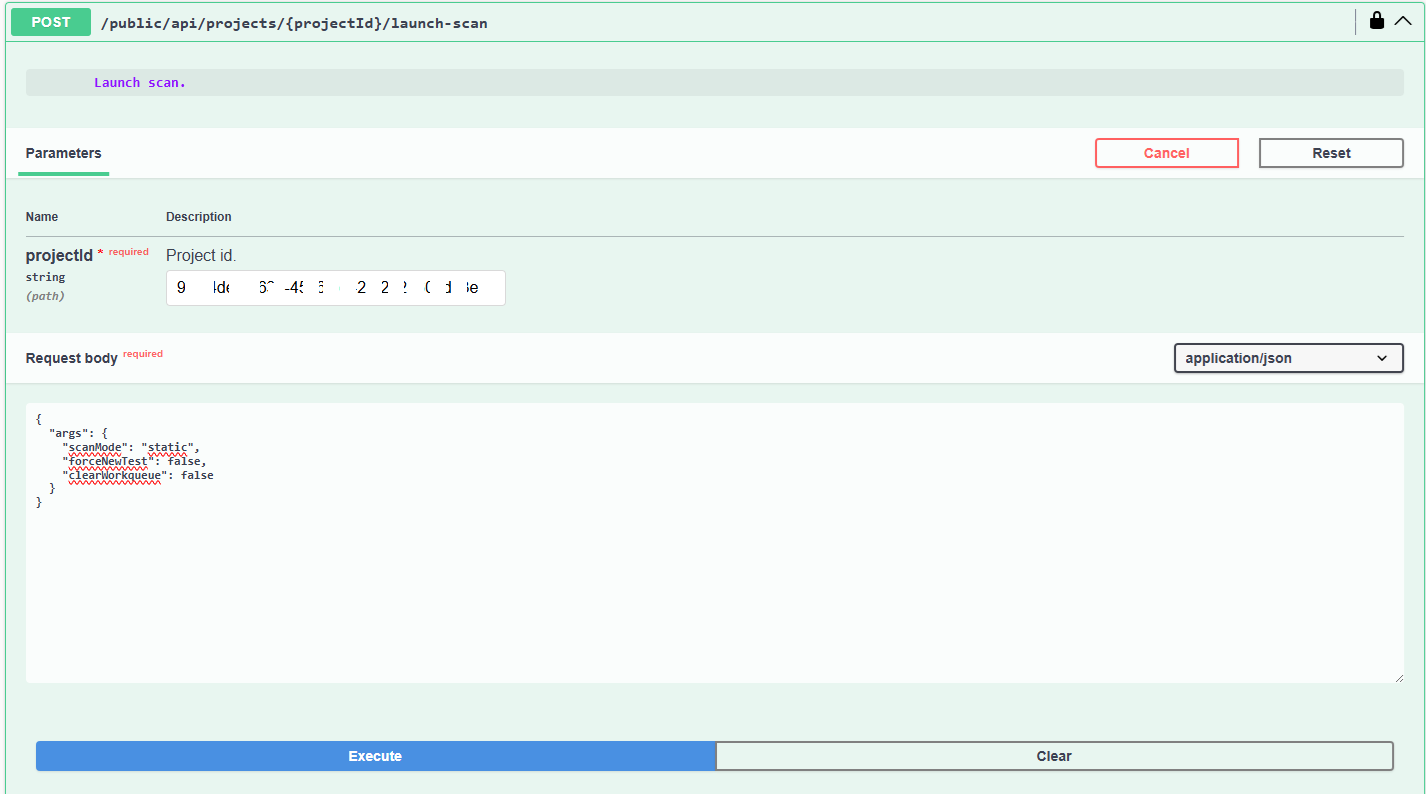
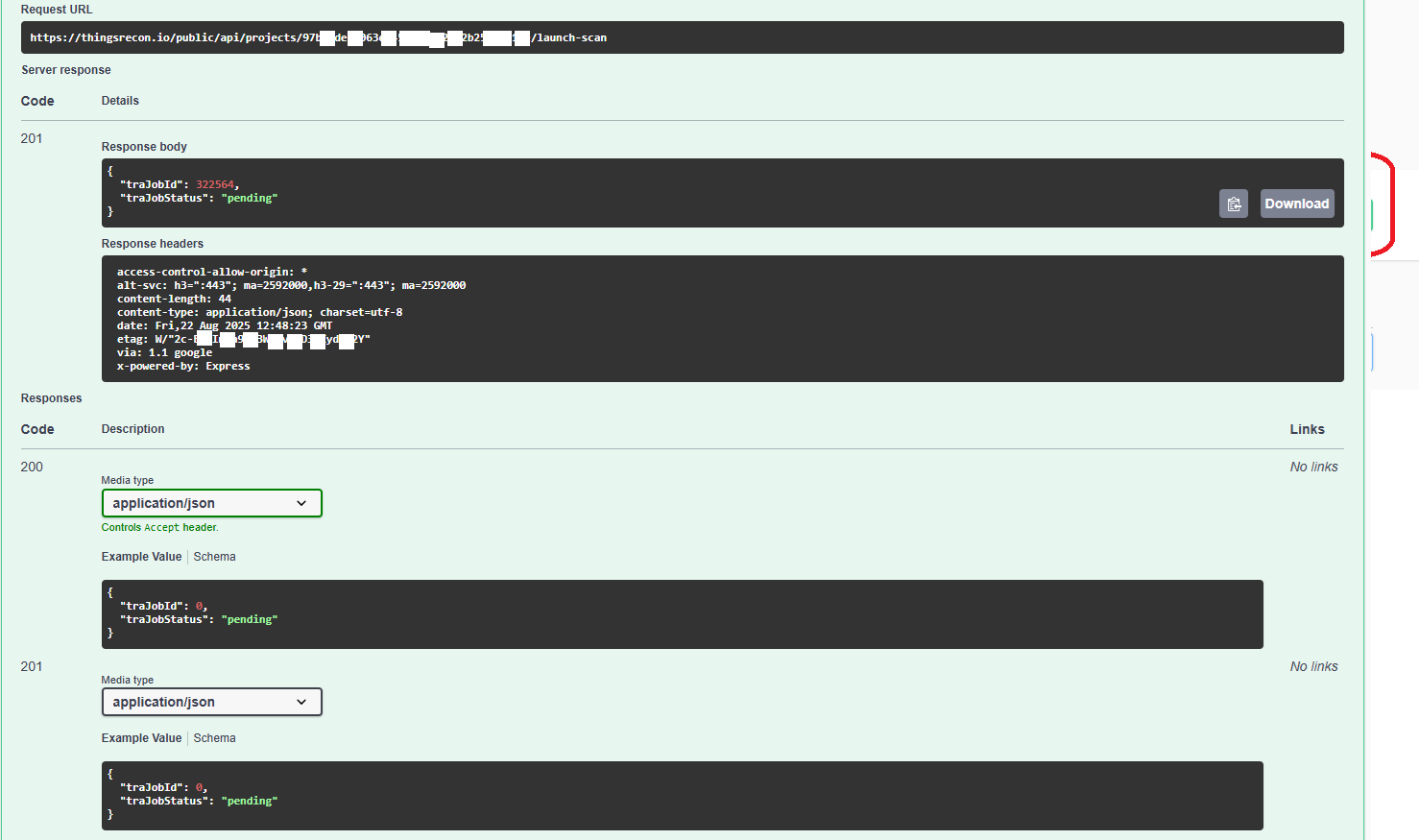
Constructing the Request via command line :
To launch a scan, you need to send a POST request to this URL, including the projectId in the path and passing your access token in an authorization header.
The general structure of the command, using a tool like curl (available on most systems), will look like this:
curl -X POST "https://thingsrecon.io/public/api/projects/{projectId}/launch-scan" -H "Authorization: Bearer YOUR_ACCESS_TOKEN"
curl -X POST: Indicates this is a POST request.https://thingsrecon.io/public/api/projects/{projectId}/launch-scan: The API URL, where{projectId}must be replaced with your project's ID.-H "Authorization: Bearer YOUR_ACCESS_TOKEN": The HTTP header that authenticates your request using the access token.
Step 3: Create an Automation Script
To automate the task, it's best to put the curl command into a script.
Example script for Linux/macOS (scan_thingsrecon.sh):
#!/bin/bash

# Replace with your access token and project ID
ACCESS_TOKEN="YOUR_ACCESS_TOKEN"
PROJECT_ID="YOUR_PROJECT_ID"

# API URL to launch a scan
API_URL="https://thingsrecon.io/public/api/projects/${PROJECT_ID}/launch-scan"

echo "Launching scan for project ${PROJECT_ID}..."
curl -X POST "${API_URL}" -H "Authorization: Bearer ${ACCESS_TOKEN}"

echo "Request sent. Check scan status in Thingsrecon."
Remember to make the script executable with chmod +x scan_thingsrecon.sh.
Example script for Windows (scan_thingsrecon.bat):
@echo off
set ACCESS_TOKEN="YOUR_ACCESS_TOKEN"
set PROJECT_ID="YOUR_PROJECT_ID"
set API_URL=https://thingsrecon.io/public/api/projects/%PROJECT_ID%/launch-scan
echo Launching scan for project %PROJECT_ID%... curl -X POST "%API_URL%" -H "Authorization: Bearer %ACCESS_TOKEN%"
echo Request sent. Check scan status in Thingsrecon.
pause
Step 4: Schedule the Script Execution
The final step is to use your operating system's task scheduler to run the script at your desired frequency.
On Linux/macOS, use
cron:Open your
crontabby typingcrontab -ein the terminal.Add a line to schedule your scan. For example, to launch a scan every day at 2:00 AM:
0 2 * * * /path/to/your/script/scan_thingsrecon.sh(Note: You can add a
>> /path/to/logfile.log 2>&1at the end to log the output.)On Windows, use Task Scheduler:
Search for "Task Scheduler" in the Start Menu.
Create a new task and configure it to run at the desired date and time.
In the Actions tab, select "Start a program" and point it to the path of your script (
scan_thingsrecon.bat).
Was this article helpful?
That’s Great!
Thank you for your feedback
Sorry! We couldn't be helpful
Thank you for your feedback
Feedback sent
We appreciate your effort and will try to fix the article